The Practical Guide to Mac Gaming in 2026
What you can play, how to play it, and what to do when your Mac gets in the way.

Gaming on a Mac is having a moment. Apple silicon changed what the hardware is capable of, and games that would have felt wildly ambitious a few years ago now run on machines as thin as a MacBook Air.
But better hardware hasn't magically turned the Mac into a gaming PC. The biggest titles still skip macOS, and others arrive years after their Windows versions — or never at all.
So Mac gamers have gotten pretty good at digging through Reddit and trying whatever workaround gets that one game running. But figuring out what works, how well it works, and which route to take is still tricky — which is why Mac gaming in 2026 could use a decent instruction manual.
So we made one.
Mac gaming in 2026: The real state of play
On paper, 2026 should be a great time to game on a Mac. The hardware is powerful, the library is growing, and even Windows games aren't necessarily off-limits anymore.
So why does Mac gaming still feel so complicated? A little backstory explains a lot.
A short history of Mac gaming
-
1980s — Apple gets in the game early
Apple computers ran some of the earliest PC games, including Ultima.
-
1990s–2000s — Windows takes over
While Apple made its own hardware, Windows spread across brands like Dell, HP, and Compaq — giving developers a much bigger audience to develop games for.
Mac got stuck in the opposite loop:
Fewer Mac players → fewer Mac games → fewer Mac players
-
2020 — Apple Silicon changes the hardware
M-series Macs finally had serious gaming power. The question shifted from “Can my Mac run it?” to “Is it even available for Mac?”
-
2020s — Windows games find a way in
Tools like CrossOver and Parallels make it possible to run many Windows games on a Mac.
-
2026 — Anti-cheat is still the wall
Native libraries are growing, but Windows-only releases and anti-cheat still block major games.
Decades of Windows-first development left a game library and compatibility gap that Mac gamers are still working around. What does that look like in practice?
The reality of Mac gaming in 2026
- ~25 major AAA titlesnow available with official Apple Silicon macOS builds
- 2.21%of Steam users are on macOSWindows: 94.1%*June 2026 Steam Hardware Survey data
- ~2 out of 10Steam bestsellers have native Mac versions*Based on a count of confirmed native macOS builds among
Steam’s weekly top‑100 bestsellers (4–11 August 2026) - 5 yearsfor Cyberpunk 2077 to reach Mac
- 1.6×higher ray-traced gaming performance*M5 Pro vs M4 Pro in Cyberpunk 2077
Best native games for Mac
At this point, you might reasonably be wondering: does Mac actually have any good games? The answer is actually a pretty solid yes.
In 2026, there are genuinely great games that run well on macOS. Not just indie games and casual time-killers, but big RPGs, strategy titles, and demanding AAA titles that put Apple hardware to the test.
Big native games
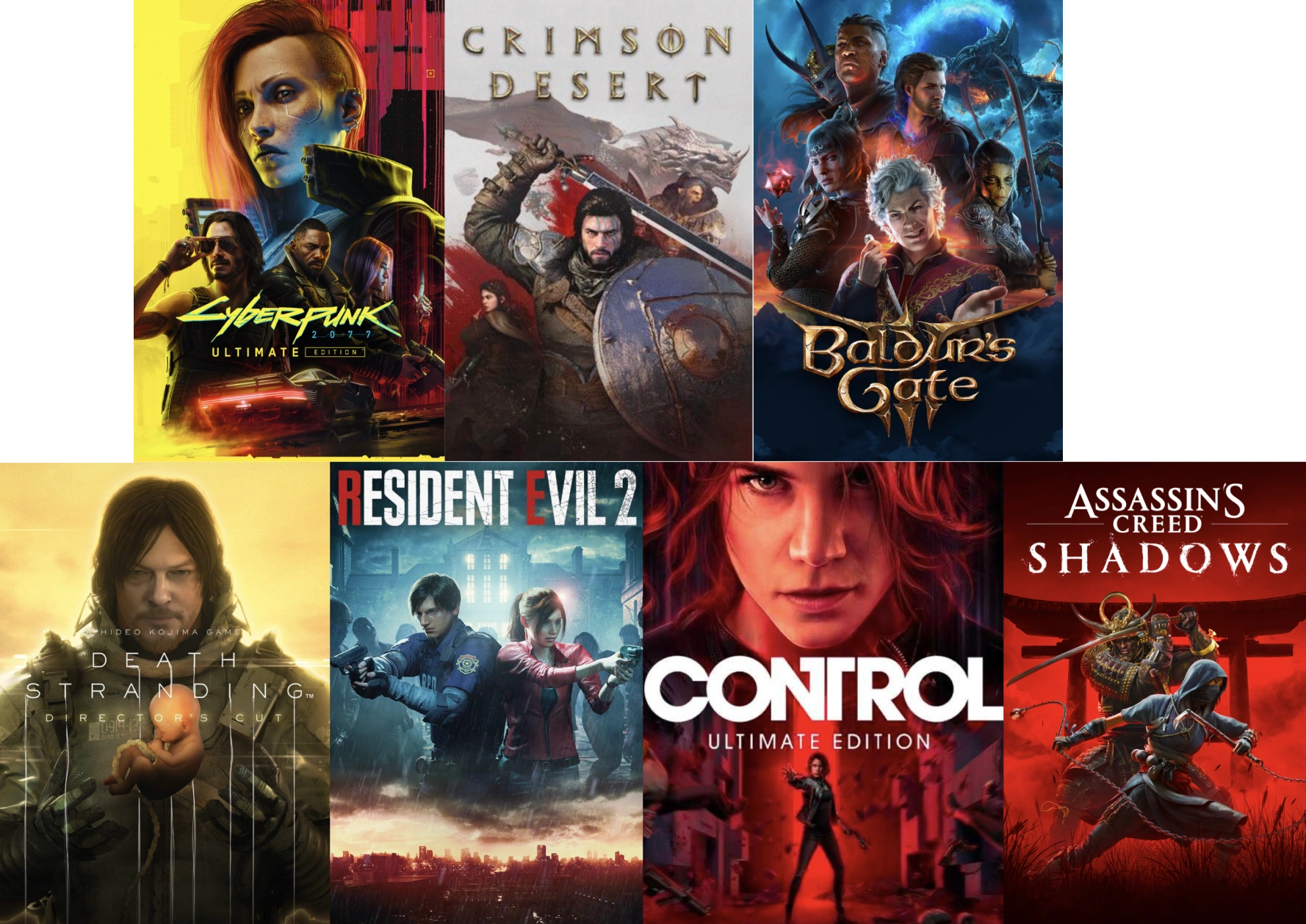
- Cyberpunk 2077: Ultimate EditionMac App Store ✓Steam ✓
- Crimson DesertMac App Store ✓Steam ✓
- Baldur’s Gate 3Steam ✓
- Death Stranding Director’s CutMac App Store ✓
- Resident EvilMac App Store ✓
- Control Ultimate EditionMac App Store ✓Steam ✓
- Assassin’s Creed ShadowsMac App Store ✓
Strategy & RPG
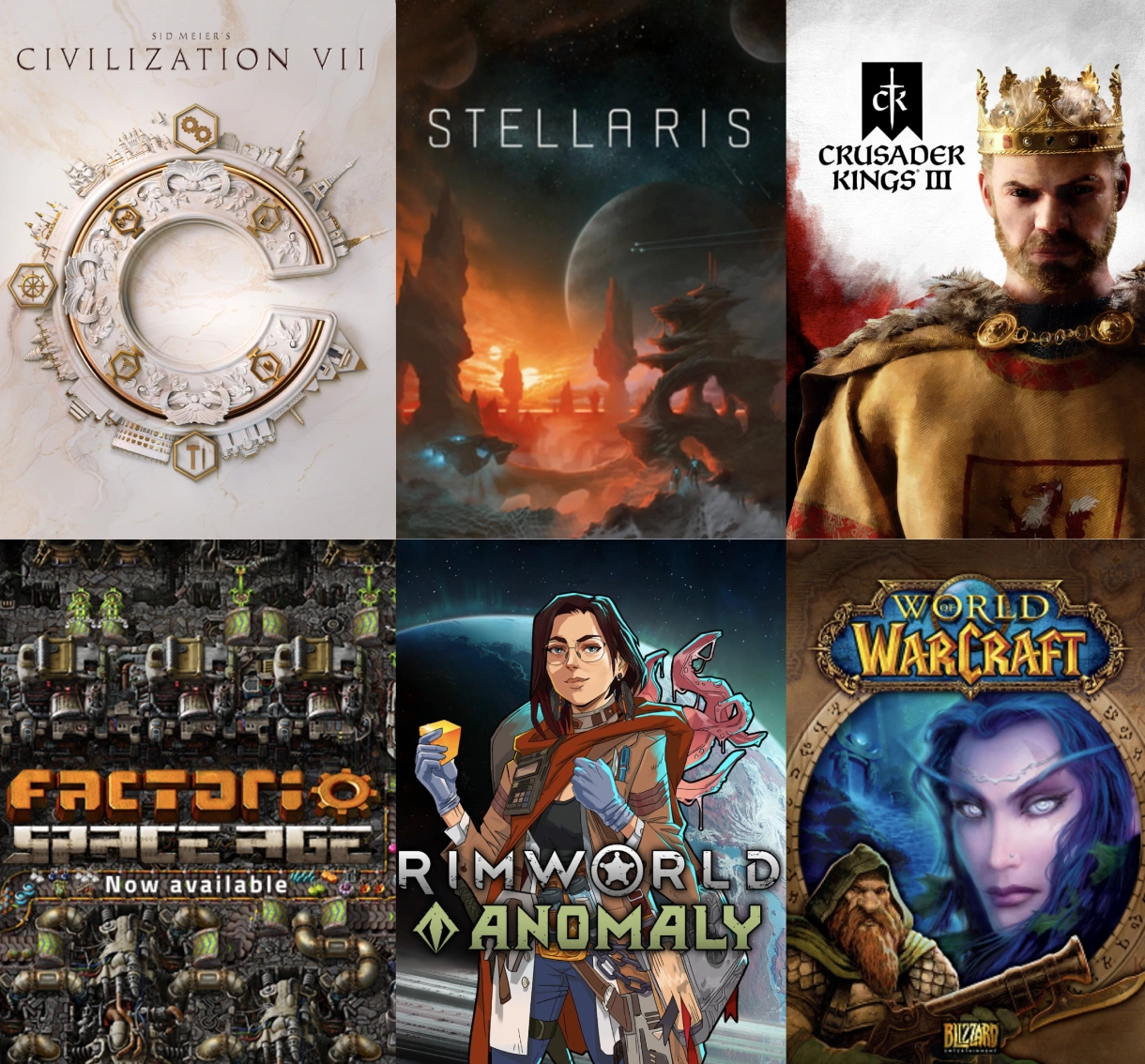
- Civilization VIISteam ✓Mac App Store ✓
- StellarisSteam ✓
- Crusader Kings IIISteam ✓
- FactorioSteam ✓factorio.com ✓
- RimWorldSteam ✓
- World of WarcraftBattle.net ✓
Indie hits

- Hades IISteam ✓
- Hollow Knight: SilksongSteam ✓
- BalatroSteam ✓Mac App Store ✓
- Stardew ValleySteam ✓
- DREDGESteam ✓Mac App Store ✓
- Cult of the LambSteam ✓
Apple Arcade

- NBA 2K26 Arcade EditionApple Arcade ✓
- Civilization VII Arcade EditionApple Arcade ✓
- Balatro+Apple Arcade ✓
- Sneaky SasquatchApple Arcade ✓
- PowerWash SimulatorApple Arcade ✓
How to run Windows games on Mac
If you own a Mac and have ever tried to figure out how to play a specific game on it, you’ve probably discovered there’s rarely one simple answer. One game works almost perfectly. Another needs an app you’ve never heard of. And some simply won’t run at all.
In practice, there’s no single way to play a Windows game on a Mac.
Once you’ve ruled out an official Mac version, there are three main routes left: translate the Windows game for macOS, run it inside Windows, or just stream it instead.
- Translate it
- Run Windows
- Stream it
Translate it
A compatibility layer works like an interpreter between the game and macOS. It translates the Windows instructions the game expects while you play, so the game can run on your Mac without a full Windows operating system in the background.
- Wine is the tech underneath much of this ecosystem. It's open source and has been translating Windows software for decades.
- CrossOver is the commercial product built on top of Wine that makes the whole thing easy to use.
- Whisky packaged similar technology into a friendlier free Mac gaming tool (but its development ended in 2025).
- The Apple Game Porting Toolkit itself is the framework Apple released in 2023 specifically to help Windows games run on Mac.
Too many terms? Let’s simplify:
Wine is the underlying technology. CrossOver is the easiest mainstream way to use it. And that’s where we’ll start.
CrossOver
For 95% of Mac gamers in 2026, CrossOver is probably the answer for single‑player/PvE Windows games. It works on any M-series Mac and handles installation, configuration, and updates for you. Your game runs locally on your Mac's hardware — no Windows installation, reboot, or internet connection required once the game is installed.
In a nutshell, it’s the easiest compatibility-layer route.
One term to know: bottle
CrossOver keeps Windows software inside self-contained environments called bottles.
Think of a bottle as a small Windows-like container on your Mac. It holds the launcher, game, settings, and Windows components they need, while CrossOver handles the translation to macOS underneath.
So when you see “create a Windows 11 bottle,” you're not installing Windows 11. You're simply telling CrossOver which Windows environment to imitate for the apps inside it.
What it costs
CrossOver costs $74 a year. The 14-day free trial requires no payment information to start, and the entire setup, including your first game installation, takes about 20 to 30 minutes once you're downloading the game.
How it performs
Performance is better than most people assume, and not as good as the marketing might suggest.
It depends heavily on the game and your Mac. A demanding modern title will generally lose some performance compared with running directly on comparable Windows hardware, while older and lighter games can get much closer to native performance.
For demanding games like Cyberpunk 2077: Ultimate Edition on an M2 Pro MacBook Pro, you can expect:
- 50–70 FPS1440p · High settings
- ~70–80%of the performance of a similarly priced Windows gaming laptop
What it runs well in 2026
The sweet spot is single-player and PvE games without restrictive anti-cheat.
The Witcher 3, Skyrim, Fallout 4, Cyberpunk 2077: Ultimate Edition, Hogwarts Legacy, all the Doom games, Hunt: Showdown 1896, Titanfall 2's campaign, Persona 5 Royal, most of the Resident Evil catalog, and a long list of older PC favorites.
What it doesn't run
Anything with kernel-level anti-cheat.
Valorant (Vanguard), PUBG (BattlEye), Call of Duty® (Ricochet), Apex Legends (EAC), Fortnite (EAC), Escape From Tarkov (BattlEye), Counter-Strike 2 (VAC bans documented for CrossOver use)
These games actively detect compatibility layers and block them.
We'll get into anti-cheat — and the alternatives when you hit that wall later.
The catch
Compatibility is game-by-game. One title might work almost perfectly, another may need a specific configuration, and another may not launch at all.
That's why the best CrossOver advice is also the simplest: install the trial, install your specific game, and verify that it works before paying anything.
Whisky
If you've spent any time looking up how to play Windows games on a Mac, you've probably come across Whisky Mac gaming. For a while, it was the obvious free alternative to CrossOver: a Mac-friendly way to get Windows games running without installing Windows.
One big catch in 2026: Whisky is no longer being developed. Development ended in 2025, so while the app hasn't suddenly stopped working, it won't support new macOS releases, game updates, or changes to the compatibility tech underneath it.
Can you still use it?
Yes — if the game you want already works.
Whisky can still run plenty of games, and because it's free, there's little harm in experimenting. But expect a more unpredictable experience: something that works today may break after a game or macOS update, and there may never be an official fix.
If you’re starting from scratch in 2026, we'd choose an actively maintained option instead. For a lot of games, translation is enough. When it isn’t, you’ll need a different approach.
2. Run Windows
What if, instead of translating a Windows game for macOS, you install a full copy of Windows and run the game there?
That's virtualization. Tools like Parallels Desktop, VMware Fusion, and UTM essentially create a Windows PC inside your Mac. You install Windows, add your game, and play — all while macOS keeps running normally in the background.
Sounds easier. What's the catch?
If gaming is your only goal, virtualization isn't automatically better than CrossOver just because there's a copy of Windows involved. And yes, anti-cheat can still be the bouncer at the door.
If you want to try the virtualization route, three tools should be on your radar. Here’s how each one works.
Parallels Desktop
Parallels is the polished route into virtualization. Launch it like any other Mac app, and Windows opens in its own window. From there, you can install Steam, Epic, or games directly and use Windows much like you would on a PC.
What it costs
~$99.99/yeardepending on plan/current pricing
Windows licensing may add another cost, and the VM itself can take tens of gigabytes before you've installed a single game.
Worth it: You need Windows for gaming and other things.
Harder to justify: You're paying just to run one game.
How it performs
Parallels adds more layers between a traditional Windows game and your Mac's hardware:
- x86/x64 game
- Windows 11 ARM
- Parallels
- Apple silicon
Windows 11 ARM can translate traditional x86/x64 software, but that extra work makes gaming performance more variable. Some games run surprisingly well; others stutter or have graphical issues.
What it runs well
In theory, anything that works on Windows 11 ARM is a candidate. In practice, there are three buckets:
ARM-native Windows games/apps
Best-case scenario since they run directly on Windows ARM.
Traditional x86/x64 Windows games
Many can run through Windows 11 ARM's own translation layer, but performance and compatibility vary by title.
Games that misbehave in CrossOver
If CrossOver's translation path is causing crashes, launcher issues, or rendering problems, running the game inside Windows may fix them.
What it doesn't run
Anti-cheat is still an issue. Some competitive games detect that Windows is running inside a virtual machine and refuse to launch. Games like Valorant can detect that Windows is running inside a virtual machine and block the game from launching.
So Parallels isn't simply “for old games.” Its real advantage is a different compatibility path. And while it may solve some compatibility problems that CrossOver can't, it doesn't solve the anti-cheat problem — it just hits it for a different reason.
The catch
Parallels gives you more Windows compatibility, but also more baggage. You're paying for the software, storing a Windows VM, and sharing your Mac's RAM, CPU, GPU, and storage between macOS, Windows, and the game. For gaming alone, it wouldn't be our first stop. It makes the most sense when CrossOver doesn't play nicely with a particular game — or when you already need Windows on your Mac for work, apps, or something else.
VMware Fusion
VMware Fusion is the free alternative to Parallels. It does essentially the same job: creates a virtual machine on your Mac where you can install Windows, Steam, or another launcher, and your games.
The trade-off is convenience. Setup is more involved, the experience is less polished, and there's less gaming-focused guidance and community support than you'll find for Parallels.
Why is it worth considering
It's free, and for most people, it gets the job done. If you run into compatibility issues or simply want a smoother, more polished experience, that's when Parallels becomes worth the money.
Where it hits a wall
The same VM limitations still apply: you're sharing your Mac's resources between macOS, Windows, and the game, and virtualization doesn't magically solve anti-cheat or game-specific compatibility.
Which route should you take?
- I want the easiest compatibility-layer experience
- CrossOver
- I need Windows for other things too
- Parallels
- I play lots of different Windows games
- Check CrossOver/Whisky compatibility first
- I play competitive multiplayer
- Keep reading
So what if none of these routes work?
Don't make the Windows game work on your Mac at all.
3. Stream it
Cloud gaming takes a completely different approach. Instead of trying to make a Windows game run on your Mac, you run it on a powerful gaming PC somewhere else and stream the result to your screen.
The remote PC does all the heavy lifting. That means no Windows install, no compatibility layer, and no massive game download. Your Mac’s GPU matters a lot less, too.
The trade-off? You've swapped a hardware and compatibility problem for an internet problem. A fast, stable connection becomes much more important than what’s inside your Mac.
In 2026, there are four cloud gaming services worth knowing about.
Cloud gaming on Mac: From niche experiment to AAA games
GeForce NOW
GeForce NOW is the heavyweight of cloud gaming. Connect your Steam, Epic, or Battle.net libraries, choose a supported game you already own, and NVIDIA runs it on a gaming PC in the cloud.
Its biggest selling point is simple: performance.
Subscription Tiers
- Free$0 · 1080p · 1-hour sessionsExpect queues
- Performance$9.99/mo · Up to 1440p · 6-hour sessionsUltrawide support
- Ultimate$19.99/mo · Up to 4K/120 FPS · 8-hour sessionsHDR · High-end RTX
Ultimate is the showcase tier. A game like Cyberpunk 2077 with ray tracing is the kind of experience that makes it very easy to forget you're streaming to a Mac.
The catch: 100 hours a month
Paid plans now include 100 hours of playtime per month, which works out to roughly 25 hours a week or a little over three hours a day. That will be plenty for many players, but could be a blocker if cloud gaming is your main way to play.
Once you go over the limit, additional time comes in paid 15-hour blocks, so heavy players can end up spending considerably more than the advertised monthly subscription.
Who’s it really for?
If visual fidelity is your priority and 100 hours a month is plenty, GeForce NOW is the performance-first choice.
Boosteroid
Boosteroid follows much the same model as GeForce NOW: you connect supported games from stores you already use, and Boosteroid runs them on a gaming PC in the cloud. It also runs directly in a browser, so you can go from Mac to game without installing another app.
Boosteroid is cheaper than GeForce Now Ultimate, supports the same catalog, and has no monthly playtime cap. What you give up is performance. Its AMD RX 7900 XT hardware is powerful, but it can’t quite match the RTX 5080 servers available through GeForce NOW Ultimate.
You can't get full path tracing on Cyberpunk through Boosteroid the way you can through GeForce Now Ultimate. For 95% of games, you won't notice. For specific moments on a few specific titles, you will.
Subscription Tiers
- StandardFrom ~€7.49/month on an annual plan
- Ultra Pro~€14.89/monthUp to 4K / 120 FPS
Whether you play for 20 hours or 120, you aren’t buying extra blocks of gaming time once you cross a limit.
Who's it really for?
If value matters more than chasing the absolute highest graphical settings, Boosteroid is the one to compare closely with GeForce NOW.
Xbox Cloud Gaming
While GeForce NOW and Boosteroid follow a “bring your own games” model, Xbox Cloud Gaming comes as part of Game Pass, so your subscription gives you both the games and the ability to stream them.
So you pay for the subscription and get access to a rotating catalogue that includes cloud streaming.
It includes Microsoft franchises like Halo, Forza, and Starfield, along with major Activision Blizzard titles and a rotating selection of third-party games.
That makes Xbox Cloud Gaming particularly good for trying different games without committing to buying each one. But you don’t control the library in the same way you do with your Steam collection: games can enter and leave Game Pass, and what’s available determines what you can stream.
Subscription Tiers
- Essential$9.99/mo · Entry tier · Cloud gaming50+ games · Standard queues
- Premium$14.99/mo · Mid tier · Cloud gaming200+ games · Shorter queues
- Ultimate$22.99/mo · Top tier · Best streaming quality400+ games · Shortest queues · Day-one releases
Streaming quality is good, but this isn’t the service for showing off what a 4K display can do. Most games top out around 1080p at 60 FPS, which might be reasonable on a MacBook screen, and less impressive on a 4K display.
Who’s it really for?
Xbox Cloud Gaming makes the most sense if you already subscribe to Game Pass, want access to Microsoft’s games, or like the idea of exploring a large catalog without buying every title first. For pure streaming quality, other services go further.
Shadow PC
Shadow is the most flexible cloud option — and one of the most expensive ones. Instead of streaming games from a fixed catalog, it gives you an entire Windows PC in the cloud. Open it from your Mac, install Steam, Epic, GOG, or whatever else you use, then download and manage your games just as you would on your own PC.
What does that unlock?
- Modded games
- Older games not in any catalog
- Even some games with anti-cheat
Subscription Tiers
Unlike the other cloud services here, Shadow gives you a full Windows PC, so its plans are defined by the hardware you get — including GPU, RAM, and storage.
- Discovery$9.99/mo · GTX 1080-class GPU · 16 GB RAM256 GB storage
- Boost$19.99/mo · RTX 3050-class GPU · 16 GB RAM512 GB storage
- Power$29.99/mo · RTX A4500-class GPU · 28 GB RAM512 GB storage
- Pro$44.99/mo · RTX 4000-class GPU · 28 GB RAM1 TB storage
Who's it really for?
- Power users
- Users with complicated game libraries
- Anyone who wants to run mods or older games
- Anyone for whom GeForce Now and Boosteroid don't have a specific game they want
If you simply want to play a few Windows games on your Mac, Shadow PC is probably overkill.
No One-Size-Fits-All Solution
Summing up, there’s no single best way to play every game on Mac.
A game that runs perfectly through CrossOver might need cloud streaming for its anti-cheat. Another might work better in a virtual machine, while some are easiest to play natively. The right setup depends on the game.
Quick decision rule
| Situation | Best first choice |
|---|---|
| Native Mac version exists | Install the native version |
| Single-player Windows game | CrossOver |
| Competitive or anti-cheat-protected game | Cloud gaming |
| You need Windows for other reasons | Parallels |
| Intel Mac with suitable hardware | Consider Boot Camp |
| Apple Silicon Mac | CrossOver, cloud gaming, or Windows ARM virtualization |
Common Mac gaming problems and how to fix them
Compatibility isn’t the only thing that can get between you and playing. Games eat storage, Windows workarounds add even more overhead, and gaming can push your Mac hard enough to reveal problems you’d never notice otherwise.
Here’s how to fix the most common ones, step by step.
Problem #1: Not enough space to install a game
Modern games can easily take up tens, and sometimes well over a hundred gigabytes. On a 256GB or 512GB Mac, a couple of big installs can leave you staring at a “Not enough space” message quickly.
Where your storage goes
Game
Game files
CrossOver
Bottles + Windows components
Parallels
Windows + virtual machine files
Steam
Caches + supporting files
Saves & mods
Game data that grows over time
Old installers, CrossOver bottles, virtual machines, caches, and leftover files can quietly take up just as much room.
Before you start deleting things, let’s figure out where the space problem is actually coming from.
Your SSD really is full
Too many games/files on a 256/512GB Mac. Your game library is literally competing with everything else on a relatively small SSD.
Common culprits:
Games · apps · downloads · photos/video · old VMs · large work files ·duplicates
Install size ≠ actual disk usage
It’s not uncommon for games to take more space than the listed size:
- Caches, patches, and shaders add 30–40% on top of the base install over time.
- Some Mac App Store builds are larger than their PC counterparts
- Steam and other launchers create temp files, shader caches, and update buffers that can temporarily double the space needed during installs or updates.
Your gaming setup adds another storage layer
Running a Windows game through Parallels or CrossOver adds storage overhead. CrossOver requires a Windows compatibility bottle and associated caches, while Parallels requires an entire Windows virtual machine, plus its updates and possible snapshots.
Worth knowing:
CrossOver does not normally require a complete Windows virtual machine, so it usually uses considerably less space than Parallels.macOS is counting space that cannot be used immediately
macOS can count purgeable caches, iCloud files, and local snapshots toward Available storage. The system can reclaim some of that space when needed, but a large game installer may need guaranteed space immediately.
That can produce this situation:
macOS appears to show 120 GB free, but the installer cannot safely allocate the 100 GB it needs.
Once you know what’s eating the space, the fixes are much simpler. These three usually give you the biggest storage wins.
Three biggest space wins
Move your game library to an external SSD
A fast external SSD can hold much of your Steam library while keeping your Mac's built-in storage free for macOS, apps, and the games you want locally.
To move a Steam game:
- Go to Steam → Settings → Storage
- Add your external SSD and create a Steam Library folder
- Select the installed game → Move
- Choose the external library
Steam moves the existing installation, so you don't need to download the entire game again.
Worth knowing: Don't fill the external drive to the brim either. Leave roughly 15–20% free space on the external drive for updates and temporary files.
Remove or relocate large games or VM files
One old game or VM can be worth more than hours of tiny cleanups. Check the largest space users first:
- Uninstall games you no longer play, or move them to the external Steam library.
- If you use Parallels, shut down Windows completely.
- In Parallels, use Control Center → File → Free Up Disk Space to remove unnecessary snapshots, memory dumps, and cache data.
- Run Windows Disk Cleanup inside the VM.
- If you use CrossOver, remove bottles and gaming environments left behind from games you've stopped playing.
Clean up safe temporary data and local snapshots
Start with:
- System Settings
- General
- Storage
Look through Applications, Documents, Downloads, and System Data. Prioritize things you recognize and no longer need:
- old installers and disk images in Downloads
- large downloads and screen recordings
- unused game launchers
- old device backups
- unnecessary VM snapshots
Avoid blindly deleting folders from /System, /Library, or ~/Library. A storage-cleaning app may identify large files, but review each item before removal.
One more place your gigabytes can hide
Time Machine and local snapshots can quietly take up space too. Large game files and especially virtual machines may be included in backups or snapshots, adding to what macOS reports under System Data. If System Data looks unusually large and the obvious files don't explain it, snapshots are one more place worth checking.
Problem #2: Game lags/low FPS
A game can launch perfectly well on your Mac and still be frustrating to play. Low FPS, stuttering, and sudden slowdowns usually mean something is limiting the resources your game needs.
Before you start dropping every graphics setting to Low, it helps to figure out what's actually slowing things down.
Why is your game lagging?
Low FPS is a symptom, not a cause.
Too much is running in the background
Your game isn't the only thing using your Mac.
Browsers with dozens of tabs, Discord, creative apps, cloud sync, VMs, and other background processes can compete with the game for CPU, GPU, and memory.
Your game competes with:
- Chrome
- Discord
- Zoom
- VMs
- cloud sync
- background apps
A clue: The game runs better after you close other apps.
Your Mac is running short on memory
When available RAM gets tight, macOS compresses memory and may start using your SSD as swap. Under a demanding gaming workload, it can contribute to stutters, frame-time spikes, and sluggishness.
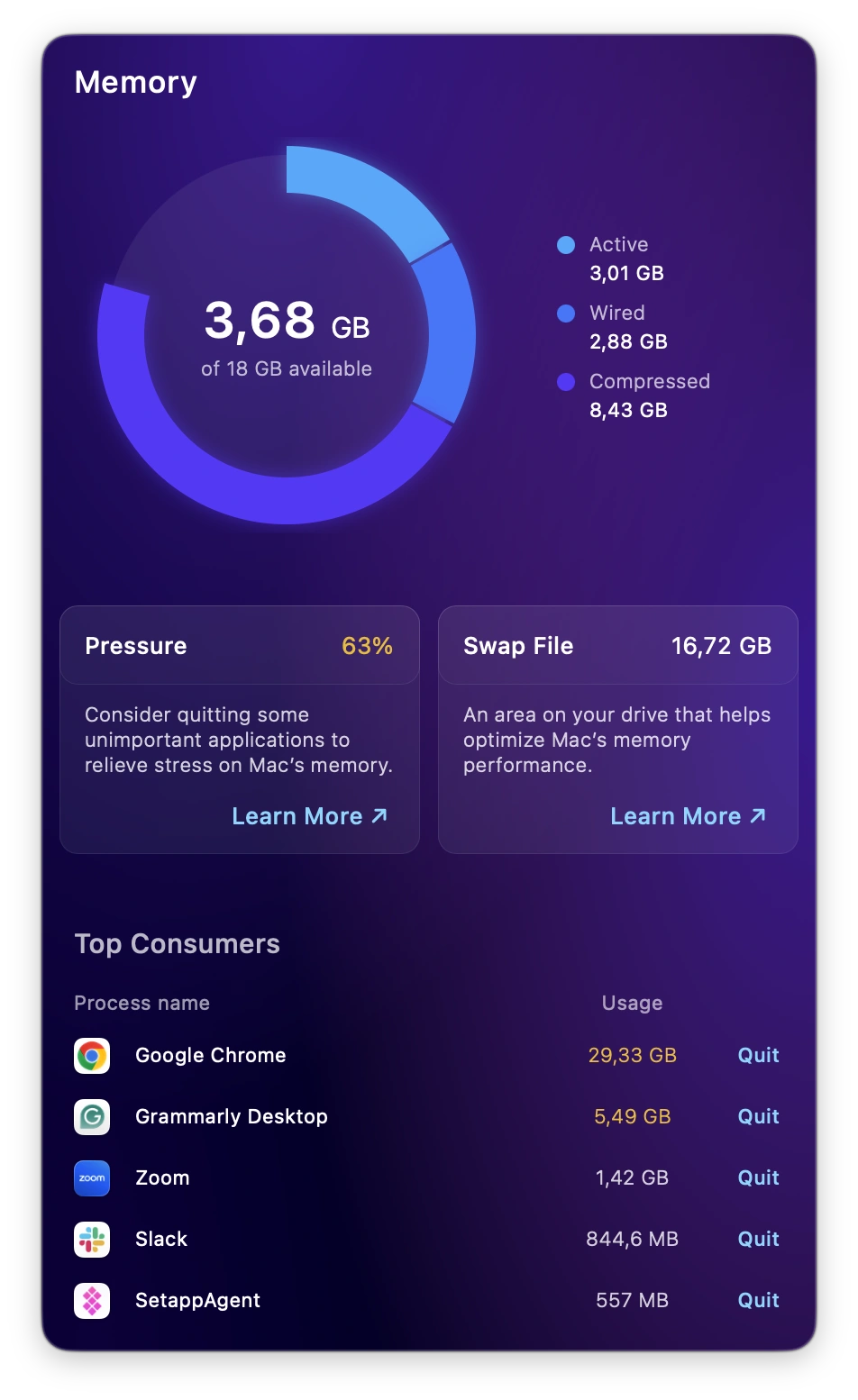
On 8–16 GB Macs, demanding games can push memory usage past available RAM
A clue: Stuttering gets worse when browsers and memory-heavy apps are open.
Your Mac gets hot — then slows itself down
Gaming keeps the CPU and GPU working hard for long periods. As temperatures rise, your Mac may reduce performance to stay within safe thermal limits — known as thermal throttling.
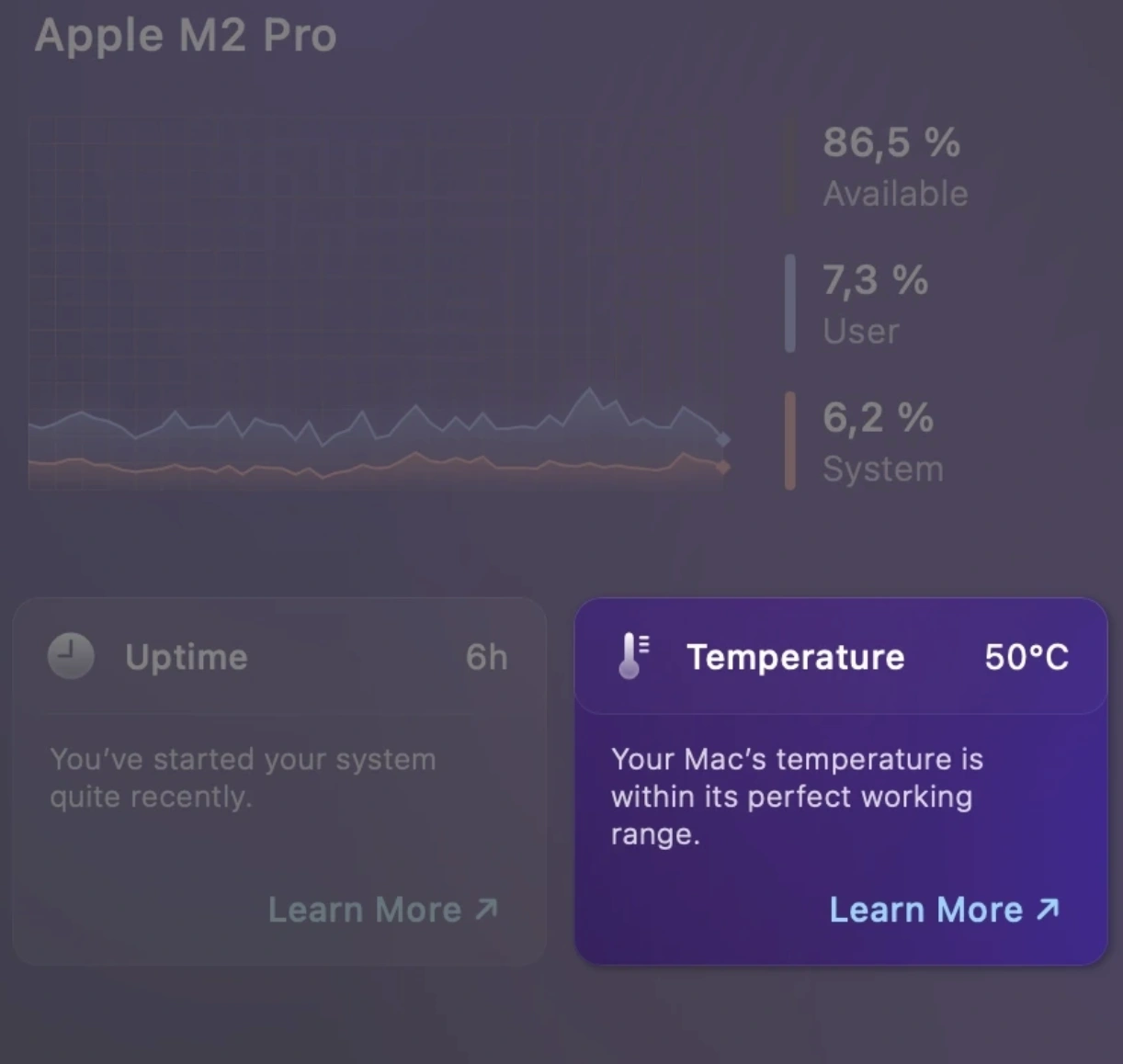
Fanless MacBook Air models have no active cooling, so long gaming sessions can make this especially noticeable, with FPS drops and stutter after 30–60 minutes.
A clue: Game starts smooth → Mac gets hot → FPS drops
The game is asking too much of your setup
Sometimes, nothing is wrong with your Mac. You're simply asking the hardware — or the workaround — to do more than it can comfortably handle.
High resolution, ray tracing, shadows, and other demanding graphics settings can overwhelm the GPU.
And if you're running a Windows game, there's another layer: CrossOver or Windows VMs.
A clue: FPS is poor from the moment the game launches, even with other apps closed and the Mac still cool.
How to get your FPS back
Quit background processes
First off, close anything competing with your Mac for resources.
Start with:
- Browser tabs
- Discord
- creative apps
- cloud sync
- background apps
Then check:
- Activity Monitor
- CPU
- Activity Monitor
- Memory
Look for apps or processes using unusually high CPU or memory and quit the ones you don't need.
Also check:
- System Settings
- General
- Login Items & Extensions
Disable background items you don't need running all the time.
Lower graphics settings for better FPS
- Resolution (the largest FPS gain)
Lower it from native resolution (2560×1440 → 1920×1080) or reduce render scale. - Ray tracing
Reduce or disable it where available. - Shadows & effects
Drop to Medium or Low — one of the most costly effects. - Upscaling
Use MetalFX, FSR, DLSS, or another available upscaler. - Frame-rate cap
Set a stable cap that matches display refresh and reduces GPU load (60 FPS).
Still struggling?
- Anti-aliasing ↓
- Ambient occlusion ↓
- Motion blur off
- Depth of field ↓
- Resolution (the largest FPS gain)
Check for thermal throttling
If FPS starts high and falls as the session goes on, heat may be the problem rather than graphics settings.
- Plug in your MacBook for demanding sessions.
- Keep vents clear on actively cooled models.
- Don't game on a bed, blanket, or other surface that traps heat.
- Raise the Mac slightly if it helps airflow.
Update your game and macOS
Game patches and macOS updates can bring performance improvements, bug fixes, and better support for Mac hardware.
Check both:
- System Settings
- General
- Software Update
- Steam / Epic / game launcher
- Check for updates
Install the latest stable macOS version supported by your Mac, and keep the game itself up to date. For newer Mac releases especially, post-launch patches can make a noticeable difference to performance and stability.
Still lagging? Find the bottleneck
- CPU near max?
- Look for competing processes.
- Memory pressure high?
- Close memory-heavy apps and tabs.
- Mac getting increasingly hot?
- Investigate thermal throttling.
- CPU/memory look fine, but FPS is low from launch?
- The game/settings/compatibility method is more likely the limitation.
- Only online/cloud games lag?
- Check your network, not just your Mac.
Problem #3: Steam doesn't free up space after uninstalling a game
Uninstalling a large Steam game can free up tens or even hundreds of gigabytes — at least, that's what you expect to happen. If the space doesn't seem to come back, start with these three checks.
Restart your Mac
The game may already be deleted while macOS's reported available storage hasn't updated properly.
- Restart
- check Storage again
Using Time Machine? Connect your backup drive
Time Machine can keep local snapshots on your Mac when the backup disk isn't available.
If you use Time Machine, reconnect the external backup drive and let it complete a backup, then check your available storage again.
Still missing space? Look for leftovers
Steam removes the main game, but other game-related files may have been created outside the Steam installation itself.
- Mods
- saves
- screenshots
- launcher data
- CrossOver bottle
- VM data
Problem #4: Game not compatible or available for macOS
Some problems can't be fixed by freeing up storage or tweaking graphics settings. Sometimes, the real problem is simply getting the game to run on macOS. Before spending an hour installing workarounds, figure out what kind of compatibility problem you're dealing with.
There's no native Mac version
You open Steam, and there's no macOS support. Or the publisher simply never released the game for Mac.
That rules out: playing it natively.
It doesn't rule out: playing it on your Mac.Next check → Can the Windows version run through a compatibility layer?
The Windows version exists, but compatibility is shaky
As mentioned earlier, some Windows games run beautifully through CrossOver. Others need specific settings, have graphical glitches, or don't launch at all.
Before installing anything, check the game's current compatibility nuances.
- Works ✓
- Works with tweaks ⚠
- Broken ✕
Next check → CrossOver not working? See whether Parallels offers a viable alternative.
Anti-cheat shuts the door
Certain anti-cheat systems reject compatibility layers or virtual machines.
Next check → See whether the game is available through a cloud gaming service.
Your Mac doesn't meet the requirements
A game can support macOS and still not support your Mac.
Possible blockers:
- Apple silicon required
- macOS version
- RAM
- GPU/chip requirements
- storage
Next check → Compare your Mac with the game's official system requirements.
None of the local routes work
If there's no native version, compatibility reports are bad, virtualization doesn't help, or anti-cheat blocks local play, cloud gaming may be the practical answer.
And if the game isn't offered by a cloud service either?
Sometimes the honest answer is: you can't play this one on a Mac right now.
Your 30-second pre-game checklist
Now you know what to do when storage, FPS, or compatibility gets in the way. But a few problems are easier to avoid than troubleshoot.
Run through these quick checks to give your Mac the best chance of a smooth session before you launch anything.
-
Switch on Game Mode
Game Mode gives your game priority access to the CPU and GPU and reduces background activity.
Run the game full screen and check that Game Mode is on.
- Open your game and switch to full screen.
- Open Game Overlay while the game is running.
- Make sure Game Mode is switched on.
Once enabled, Game Mode stays on for that game until you turn it off.
-
Check your power mode
MacBook Pro models that support High Power Mode can use it for demanding games and longer sessions.
For fanless MacBook Air models, Low Power Mode can be worth testing instead. Lower power draw can mean less heat and, in some games, more consistent performance over a long session.
-
Put a fanless Mac on a hard surface
MacBook Air has no fan, so don't make cooling any harder than it needs to be.
Use it on a desk, table, or stand rather than a bed, blanket, or your lap, where heat can get trapped around the chassis.
-
Quit heavy background apps
Quit Chrome (it eats RAM), Slack, and anything else memory-hungry before launching demanding games. Don’t focus only on the amount of RAM shown as “used”. Check Activity Monitor → Memory → Memory Pressure. Green is generally fine, while yellow or red indicates increasing memory strain.
-
Check your connection if you’re gaming online
If you're playing multiplayer or streaming from the cloud, a shaky connection can feel a lot like bad game performance.
Use Ethernet where practical, or make sure you have a strong, stable Wi-Fi connection. For cloud gaming in particular, your connection is part of your gaming hardware.
Final thoughts
There’s probably never going to be one neat answer to “Can I play this on my Mac?” Mac gaming still isn’t plug-and-play for every game, and it probably won’t be for a while.
But that’s Mac gaming in 2026: a little messy, surprisingly capable, and much less hopeless than your average Reddit thread would have you believe.
Hopefully, the next time you find a game you want to play, you’ll know where to start.
FAQ: Questions you'll probably Google anyway
Yes — Steam works on Mac, but not every game in its library does. Games with an official macOS version can be installed and played directly — check for macOS support icon and system requirements to confirm compatibility.
If a game is Windows-only, that doesn’t necessarily rule it out. You may still be able to play it using CrossOver, a Windows virtual machine like Parallels, or cloud gaming, depending on the game.
Yes — you can play many PC games on a Mac, but not all of them, and not always natively.
Some PC games have official macOS versions and run directly through Steam or other Mac launchers. For Windows-only titles, you can use CrossOver, a virtual machine like Parallels, or cloud gaming services.
Some titles, especially those with strict anti-cheat, may not work locally at all.
Mac is good for gaming in 2026 if you mostly play native macOS titles or use cloud gaming, but it’s still behind Windows for game availability. Many popular PC games remain Windows-only, so you may still need CrossOver, Parallels, or cloud gaming to play them.
Yes — a MacBook Air can run games, especially native macOS titles and lighter or indie games. The catch is its fanless design: during long, demanding gaming sessions, heat can cause the Mac to throttle performance, so it isn't the best choice for serious AAA gaming.
And if the game is Windows-only, you’ll still need CrossOver, virtualization, or cloud gaming.
Yes — you can play many Windows games on a Mac without Boot Camp by using CrossOver (runs Windows games directly), Parallels (runs Windows in a virtual machine), or cloud gaming services. Boot Camp is not available on Apple Silicon Macs anyway, so these are the main options in 2026.
The macOS gaming audience is small (around 2–3% of Steam users), so developers prioritize Windows where the player base is much larger. Even though modern Mac hardware is powerful enough for AAA gaming, porting still costs time and money (adapting graphics APIs, testing on different hardware, and dealing with anti‑cheat and launcher issues), often without enough sales to justify it.
Yes — GeForce NOW works on Mac.
NVIDIA provides a native macOS app (supported on macOS 10.15 and later, including Apple Silicon Macs), and you can also use GeForce NOW in supported browsers like Safari. It streams Windows PC games from NVIDIA’s servers, so you can play many Windows‑only titles on a Mac without installing them locally.